Developers who run AI agents (such as Claude Code) in the cloud have almost certainly experienced this frustrating moment: you set an agent to perform a long-running task on a server—like executing a full suite of automated tests or analyzing an entire codebase—only for your local network to flicker, an SSH connection to drop, or for you to accidentally close your terminal window. Suddenly, the running Claude Code instance is terminated, and half an hour’s worth of progress is wiped out.
This happens because traditional SSH sessions are bound to a terminal (TTY). When the connection is severed, the system sends a `SIGHUP` signal to all processes within that session, causing them to terminate immediately.
To keep Claude Code running 24/7 on a VPS—unaffected by the stability of your local network—you need a two-pronged approach: use `tmux` to maintain an interactive session and `systemd` to manage it as a background daemon.
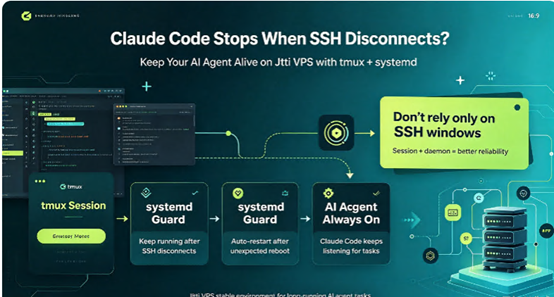
Option 1: `tmux` — Saving Your Interactive Sessions
If you need to access the Claude Code interface at any time to check progress or adjust prompts, `tmux` is the perfect solution. It allows multiple terminal instances to share a single session and supports "detaching" and "reattaching."
1. Install `tmux`
Log in to your Jtti VPS and run the installation command:
Ubuntu/Debian

sudo apt update && sudo apt install tmux -y

CentOS/Rocky

sudo yum install tmux -y
2. Create a Dedicated Session and Run Claude Code
tmux new -s claude_agentOnce inside the `tmux` interface, launch Claude Code as you normally would. Any operations you perform within this window will remain safe inside this virtual terminal.
3. Safely "Detach" and Reattach
If you need to step away—perhaps at the end of the workday—or if your network connection becomes unstable, press the key combination `Ctrl+B`, release it, and then press `D` (for "detach"). You will return to your standard VPS command line, but Claude Code will continue running in the background within the `tmux` session.
When you reconnect to your VPS, simply run:
tmux attach -t claude_agentYou will be instantly transported back to your previous workspace, with your progress exactly where you left it. Option 2: systemd — Running an AI Agent as a Persistent System Service
If your use case requires a fully unattended setup—such as having Claude Code monitor a queue in the background or executing automated refactoring tasks on a schedule—a more robust, production-grade approach is to configure it as a `systemd` service. This ensures the agent starts automatically upon system boot and is automatically restarted by the system should it crash unexpectedly.
1. Create a startup script
To integrate with `systemd`, it is recommended to create a wrapper script, `run_claude.sh`:
#!/bin/bash

cd /home/developer/project

# Assuming Claude Code is executed via npx

npx @anthropic-ai/claude-code --non-interactive
2. Create a systemd service file
Using root or `sudo` privileges, create the file `/etc/systemd/system/claude.service`:
```ini

[Unit]

Description=Claude Code Background Agent

After=network.target

[Service]

# It is highly recommended to run as a non-root user

User=developer

WorkingDirectory=/home/developer/project

ExecStart=/home/developer/run_claude.sh

# Automatically restart if the process crashes

Restart=always

RestartSec=10

# Resource limits

MemoryMax=4G

[Install]

WantedBy=multi-user.target
3. Enable and start the service
sudo systemctl daemon-reload

sudo systemctl enable claude.service

sudo systemctl start claude.service
You can monitor the agent at any time using `journalctl -u claude -f` to view its logs and current operational status.
When running an AI agent persistently in the cloud, the primary concern is often not the script itself, but the stability of the server's network connection. Be aware that if your VPS experiences frequent packet loss—common during peak evening hours—Claude Code may encounter repeated timeouts and retries when calling remote APIs, which could potentially lead to session blockages.